Here Comes Godot
2025-10-28, Tue
What if we consider the Godot engine1 as a script interpreter first? – specifically, as an interpreter for GDScript. This post intends to record hiccups I've encountered while taking this path.
1. Environment Setup
Of course, the first step is to compile Godot in local environment and
add godot to user path. Follow the official documentation for
instructions on compiling for macOS2 and
Linux3.
The following step is to config text editor. Take Emacs as example, we need to:
- Install
gdsript-modefrom MELPA4 - Add
eglot-ensuretogdscript-mode-hook5 - Start Godot editor as LSP Server
A sample config looks like this:
(add-hook 'gdscript-mode-hook 'eglot-ensure)
(add-hook 'gdscript-mode-hook 'company-mode)
2. Sample Scripts
Now it's time to draft some "Hello World" script, e.g. for
hello-world.gd:
#ref: hello-world.gd
extends SceneTree
run the script with godot:
godot -s hello-world.gd
And we would have a dialog window showing up, meaning that the script has been executed successfully.
In order to display static text in the dialog, we could use a label. e.g.
#ref: hello-world-v2.gd
extends SceneTree

func _initialize():
        var label = Label.new()
        label.text = "Hello, World!"
        label.add_theme_font_size_override("font_size", 48)
        root.add_child(label)
Run the script again, and we should be able to see text now.
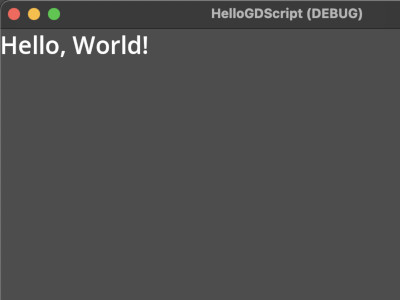
Figure 1: Hello World in GDScript
If you are into CLI instead of GUI, we could make things easier by
extending MainLoop:
#ref: hello-mainloop.gd
extends MainLoop

func _initialize():
        print("Hello, World!")

func _process(_delta: float):
        return true # return true to terminate the program
Now run godot --headless -s hello-mainloop.gd to see result in only
terminal.
3. Import Class From Other Scripts
We could use @GlobalScope.preload() to import class defined in other scripts. e.g.
Person.gd defines a class called, well, Person:
class_name Person

static var max_id = 0

var id
var name

func _init(p_name):
        max_id += 1
        id = max_id
        name = p_name
In some other script, we could import the class like this:
#ref: Test_Person.gd
extends MainLoop

const Person = preload("Person.gd")

func _initialize():
        var person1 = Person.new("Jone Doe")
        var person2 = Person.new("Jane Doe")

        print(person1.id)
        print(person2.id)

func _process(_delta):
        return true
4. Create, Save, Load, and Instantiate Scene
These steps could usually be achieved through Editor. However, what if we want to get them done only in script intead?
In order to create and save a new scene, we could use the ResourceSave.save() method, e.g.
extends MainLoop

var label: Label

# godot --headless -s create-and-save-scene.gd
func _initialize():
        label = Label.new()
        label.text = "Hello, World! (from scene)"

        var scene := PackedScene.new()
        scene.pack(label)

        var error := ResourceSaver.save(scene, "out/hello-world.tscn")
        if error != OK:
                print("Save scene failed")

func _process(_delta): return true


func _finalize(): label.free()
Note that the reason why we introduce _finalize() to free label is
to get rid of the following warning messages on memory leak:
WARNING: 1 RID of type "CanvasItem" was leaked.
     at: _free_rids (servers/rendering/renderer_canvas_cull.cpp:2690)
WARNING: ObjectDB instances leaked at exit (run with --verbose for details).
     at: cleanup (core/object/object.cpp:2570)
Try to comment out the _finalize method to trigger this message.
Also note that the file name should end with suffix .tscn,
otherwise ResourceSaver.save() will fail.
Now let's load and instantiate the scene from file.
extends SceneTree

var scene := preload("out/hello-world.tscn")

# godot -s load-and-instantiate-scene.gd
func _initialize():
        var instance := scene.instantiate()
        root.add_child(instance)
5. Instancing with Signals
The following example comes from Godot tutorial Instancing with signals, with modification to combine all logic into one script, e.g.
# ref: https://docs.godotengine.org/en/4.5/tutorials/scripting/instancing_with_signals.html

extends SceneTree


func _initialize():
        var player := Player.new()
        player.shoot.connect(_on_player_shoot)
        root.add_child(player)

func _on_player_shoot(bullet_type: Variant, direction: float, location: Vector2) -> void:
        var spawned_bullet := bullet_type.new() as Bullet
        root.add_child(spawned_bullet)
        spawned_bullet.rotation = direction
        spawned_bullet.position = location
        spawned_bullet.velocity = spawned_bullet.velocity.rotated(direction)


class Player extends Sprite2D:
        signal shoot(bullet: Object, direction: float, location:Vector2)

        func _ready():
                self.texture = load("res://icon.svg")

        func _enter_tree():
                # var size = get_window().size
                var size := get_viewport_rect().size
                position = Vector2(size.x / 2, size.y / 2)

        func _input(event):
                if event is InputEventMouseButton:
                        if event.button_index == MOUSE_BUTTON_LEFT and event.pressed:
                                shoot.emit(Bullet, rotation, position)

        func _process(_delta):
                look_at(get_global_mouse_position())

class Bullet extends Sprite2D:

        var velocity := Vector2.RIGHT * 100
        var visible_notifier := VisibleOnScreenNotifier2D.new()

        func _ready():
                self.texture = load("res://icon.svg")
                self.scale = Vector2(0.5, 0.5)
                self.add_child(visible_notifier)
                visible_notifier.screen_exited.connect(_on_visible_on_screen_notifier_2d_screen_exited)

        func _physics_process(delta):
                position += velocity * delta

        func _on_visible_on_screen_notifier_2d_screen_exited():
                queue_free()
The icon.svg file comes along with any Godot project, and could be
replaced with image you see fit. Run the script like godot -s
shooting-sprite.gd and the result looks like this:
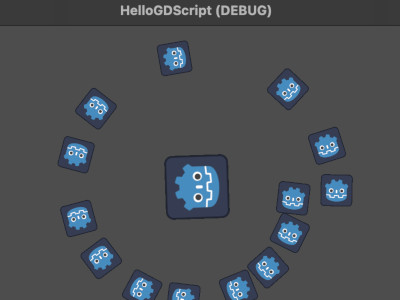
Figure 2: Sprite Instantiated on Mouse Click
6. Example: Design Tetris
6.1. The Blocks
Block types: